
You updated PVZ Fusion, opened the game, and everything was gone — levels, unlocks, months of progress. It happens after almost every release, and here is the part nobody tells you: most of the time your save is not deleted. Your PVZ Fusion save data is still on your device, sitting in a folder the new version can’t see. This guide shows where the save lives, how to protect it in 2 minutes, and how to move it when a version changes where the game looks. Everything below is checked against the current English Android release-3 (October 22, 2026) and the translators’ own migration notes.
Short Answer: Your PVZ Fusion save is a local file — there is no cloud save. On Android it is playerData.json in Android/data/com.LanPiaoPiao.PlantsVsZombiesRH/files/; on PC it is the folder AppData\LocalLow\LanPiaoPiao\PlantsVsZombiesRH. Copy that file or folder somewhere safe before every update, and your progress survives any version change — including the English release-3 package switch explained below.
Where is my PVZ Fusion save file?
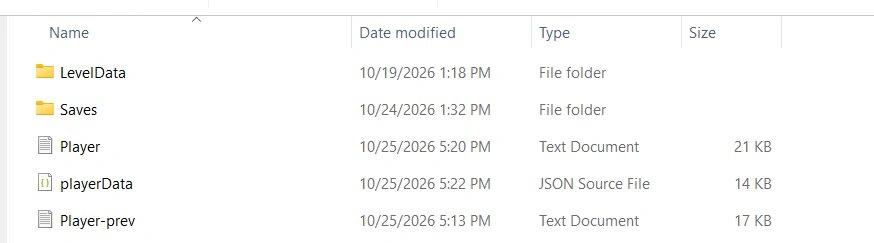
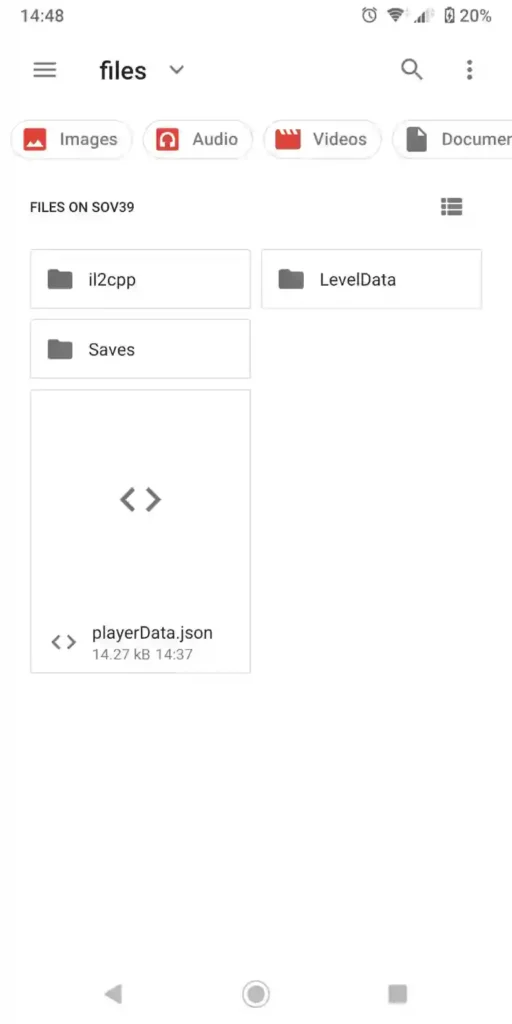
On Android, the save file location is Android/data/com.LanPiaoPiao.PlantsVsZombiesRH/files/ — the key file is playerData.json, with a LevelData folder alongside it if your game has created one. On PC, your save is the whole folder C:\Users\[User]\AppData\LocalLow\LanPiaoPiao\PlantsVsZombiesRH — inside it you should see the same playerData (a JSON file), a LevelData folder, and a Saves folder. If those are there, you are in the right place.
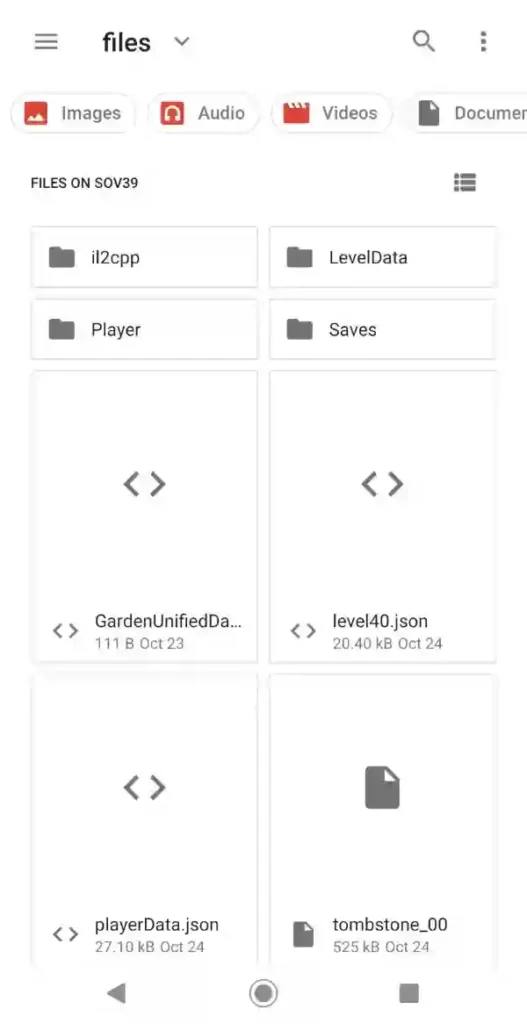
playerData.json holds your profiles and progress; LevelData holds level data. Together, they are your save — there is nothing else to find. Ignore guides that point you to a Documents\PVZFusion folder or an AppData\Roaming folder: the game does not use those locations, whatever those pages claim. After the English release-3 install you may see two similar folders — the old ...PlantsVsZombiesRH and a new ...PlantsVsZombiesEN. The old one holds your progress until you move it (steps below). If your save folder is missing entirely, check the troubleshooting guide before doing anything else.
How do I back up my save before updating?
Copy the save somewhere safe before you install or uninstall anything — the whole backup takes about 2 minutes. On Android, copy the files folder; on PC, copy the PlantsVsZombiesRH folder. Put the copy in your Downloads folder, a cloud drive, or on a PC, and name it with the version and date.
On Android:
- Open your file manager and go to
Android/data/com.LanPiaoPiao.PlantsVsZombiesRH/ - Copy the whole
filesfolder - Paste it somewhere outside the game’s folders — Downloads or a cloud drive works
- Check the copy contains
playerData.jsonbefore you touch the update
On PC:
- Open
C:\Users\[User]\AppData\LocalLow\LanPiaoPiao\ - Copy the whole
PlantsVsZombiesRHfolder - Paste it somewhere safe, named with the version and date
One rule matters more than the rest: back up first, because a differently-signed build can force an uninstall — and uninstalling the app deletes the local save with it. If your file manager cannot open the Android/data folder, connect the phone to a PC and browse to the same folder from there; the files are identical either way.
I updated to English 4.0.5 release-3 — why did my progress disappear?
It didn’t get deleted — release-3 changed the app’s package. The old English builds lived under com.LanPiaoPiao.PlantsVsZombiesRH; release-3 moved to a new package, com.LanPiaoPiao.PlantsVsZombiesEN, and the new app can only read its own folder. Your save is still in the old folder, untouched, until you move it.
A package name is simply the app’s ID on your phone — change the ID and Android treats it as a different app with a different folder. This is exactly why the standard advice on other sites — “just install the new APK over the old one” — fails here: there is no “over the old one” when the new build is a separate app. Release-3 made this one-time change so future English updates can install in place (more on that below). For the full release-3 status and what changed, see the English version status page.
How do I move my save to the new package?
Install release-3, open it once so it creates its own folder, then copy only the save files from the old folder into the new one — never the whole folder. Here is the full pvz fusion save transfer, step by step:
- Back up the old
filesfolder first (method above) — do not skip this - Install the English release-3 APK, but do not uninstall the old app
- Open the new app once, reach the main menu, then fully close it (force-stop is safest) — this creates its folder
- In the old folder —
Android/data/com.LanPiaoPiao.PlantsVsZombiesRH/files/— findplayerData.json. This one file holds your profiles, progression, unlocks, settings and money - If the new folder already has its own fresh
playerData.json,LevelDataandSaves, delete those fresh copies first — then paste yours in, so nothing lands with a “(1)” in its name - Paste
playerData.jsonintoAndroid/data/com.LanPiaoPiao.PlantsVsZombiesEN/files/. If you play the extra modes, also copy what applies to you: thePlayerfolder (it holdsPlayer/Saves/), anylevel<number>.jsonfiles (for examplelevel40.json),GardenUnifiedData.json, andAutoChessSaves/if you have it - Never copy
il2cpp,tombstone_*crash logs, caches, or loose translation or mod files — and never dump the whole oldfilesfolder into the new one. Restoring those can override or break the English build - Open the new app and check that your progress is there — then, and only then, delete the old app if you want to
Three practical notes from doing this transfer ourselves. First: on some phones the file manager’s “Copy to” screen opens in Downloads and hides the real folders — open its menu, turn on “Show internal storage”, and browse to the folder by hand; or do the copy from a PC over USB, which shows the same folders with fewer taps. Second: the new app’s first launch can hang or freeze once while it builds its caches — close it and reopen; it settles after the first run. Third, a warning straight from the translator’s notes: never use Android’s “Clear storage/data” on the new app while sorting this out — that deletes the very save you are trying to keep.
On PC there is no package change to deal with: PC builds keep using the same PlantsVsZombiesRH folder, so if you extract a new version to a different location, copy your backed-up folder back into place. The current builds are on the download page.
My save files are still there, but the game starts from zero — what now?
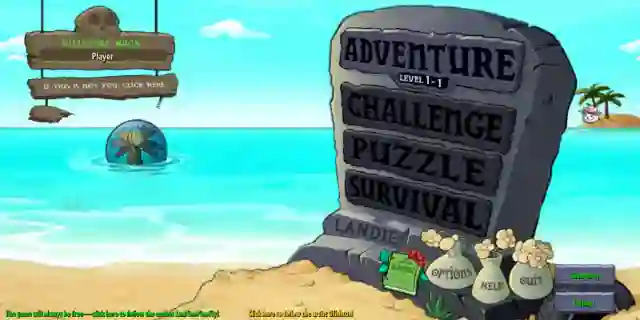
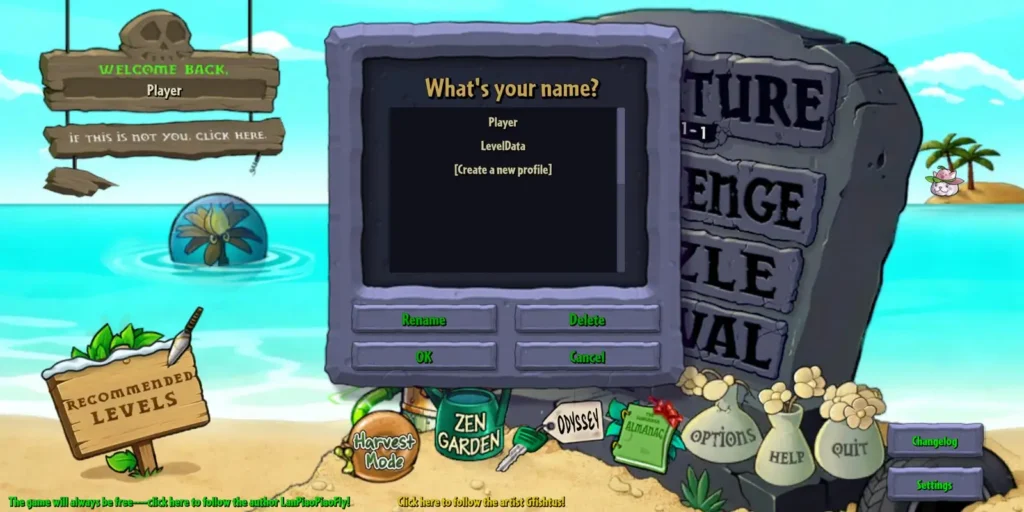
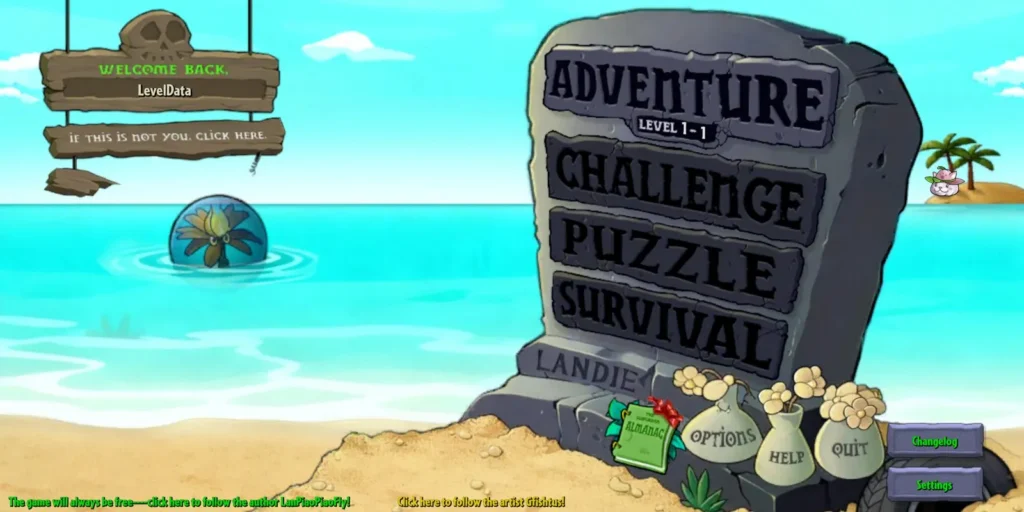
Check the profile before you panic. If the main menu shows “WELCOME BACK” with “IF THIS IS NOT YOU, CLICK HERE”, the game may simply have opened a fresh profile — tap through and select your existing profile, and the “lost” progress comes back.
This is the check almost nobody does, because no other guide mentions profiles at all. It follows simple logic: if playerData.json and LevelData are still sitting in the folder, your data exists — the game is just not showing it to you. Work in this order: profile first (this section), folder second (are the files really there?), transfer third (the release-3 steps above). We have seen both the full menu and the bare fresh-start menu on the same install — the difference was the profile, not the version. When we ran the release-3 transfer on our own phone, the name list afterwards showed both profiles side by side — the fresh “Player” the new app created, and our transferred profile next to it. The save had already arrived; it just was not the profile on screen.
One warning belongs here, because it is the button players reach for when a profile seems missing: “Complete All levels” in Settings does not bring a missing profile back. It only marks levels complete on the profile that is currently loaded — a fake completion, not your save. If your profile is not in the list, the real fix is the file transfer above, not that button.
Will future updates wipe my save data again?
From release-3 onward, English Android updates install in place without wiping — the package change was a one-time move, made precisely so this stops happening. Back up before every update anyway: the pvz fusion save data on your device is the only copy that exists, and a backup costs 2 minutes while a lost save costs everything.
It helps to know how saves actually die. There are only two real killers: a forced uninstall (a differently-signed build can trigger one, and uninstalling deletes the save), and deleting the app or its folder yourself. Everything else — the package change, the wrong profile — only makes a save look dead. The 2-minute backup habit covers all four cases at once.
What if I already lost my save?
Honestly: if the app was uninstalled, the folder is gone, and you have no backup, the save cannot be recovered. PVZ Fusion has no cloud save and no account system — there is no support desk that can restore your progress, and advice written for PvZ 2 accounts (contact EA, re-register your email) does not apply to this game at all. Don’t waste hours on it.
Before you accept the loss, run this quick triage — most “lost progress” reports end at step 1 or 2:
- Files still in the old RH folder? → They were never lost. Do the transfer steps above.
- Files present, but the game opens empty? → Wrong profile. Switch at the WELCOME BACK prompt.
- No files, no backup, app uninstalled? → Gone, honestly. Start fresh — and make the backup below the first thing you set up this time.
Your 30-second pre-update checklist
Keep your pvz fusion save data safe by running through this before every update:
- Back up
playerData.json(Android) or thePlantsVsZombiesRHfolder (PC) - Note which package your current build uses — RH or EN
- Install the update
- Open the game and check your progress before deleting anything
- Keep the backup until you have played at least one level on the new build
No. Your progress is stored in one local file on your device — nothing syncs to any account or server. That is why a manual backup before updating is the only protection your save has.
In Android/data/com.LanPiaoPiao.PlantsVsZombiesRH/files/ — the key file is playerData.json, with a LevelData folder if your game has created one. On the English release-3 build, the save belongs in the matching PlantsVsZombiesEN folder after the one-time transfer explained above.
Because release-3 changed the app’s package from PlantsVsZombiesRH to PlantsVsZombiesEN, and the new app cannot see the old app’s folder. Your save is still in the old folder — copy playerData.json (plus the Player folder, if you use the extra modes) into the new folder and your progress returns.
Only if the save folder or a backup copy survived somewhere on your device or cloud storage. Uninstalling normally deletes the local save, and with no cloud save there is no other copy. If you do have a backup, reinstall the game and copy the files back into place.
Steps and paths on this page were checked against the English Android release-3 (October 22, 2026) and the translators’ published migration notes. If a future version changes the save location or the package again, this post will be updated the same week.